
Proxy Auto-Configuration Gives Relief From Internet Traffic Chaos
Networks are inherently messy, but lately it seems that they are just getting out of control. I don't mean physical messes—although those certainly exist too. Instead I'm referring to the constantly increasing quantity of seemingly random packets that are zipping around on all of our networks, without any apparent order or intent, coming from unknown sources and going to the weirdest of places.
One of the biggest contributors to this phenomenon is the large number of auto-patch widgets that are embedded into every application and utility under the sun, all of which generate frequent connection requests to their own update servers. Meanwhile, Internet-centric and hosted applications that essentially depend on connectivity for basic functionality are also becoming more common, and they naturally generate a large amount of Web traffic that otherwise wouldn't exist.
Going forward, companies like Google and Microsoft are also working hard to come up with new Web-based applications that they hope we'll integrate into our desktops, and which will just make managing Internet traffic harder for administrators everywhere.
The most effective way to deal with this situation is usually to implement some kind of caching proxy server, such as Squid, or Microsoft's Internet Security and Acceleration Server, or any of the other dozen-plus similar offerings, and then force all client-side Web requests to go through the proxy server. Properly implemented, these servers can provide administrators with a single choke-point for all Web traffic, thereby providing administrators a way to actively manage the traffic.
The primary factor in the overall effectiveness of these tools is the ability and willingness of the network clients to use them, which isn't always guaranteed. For example, protecting the network from mass patch downloads largely depends on whether or not the applications will use the proxy for outgoing connections, but it can be difficult to get all of the various applications and utilities to use the proxy server in the first place.
Similarly, a proxy server with an anti-virus plug-in can provide network-wide protection that goes well beyond traditional desktop solutions, but this whole value proposition will be made moot if network clients aren't actually using the proxy server for their downloads.
This situation is compounded by the fact that almost all the different Internet-aware applications have their own unique proxy configuration mechanisms, each of which has to be managed and maintained separately from all the others. This makes it hard for administrators to reach high levels of functionality. Largely as a result of these kinds of difficulties, many networks simply do not use proxy servers at all—one informal survey showed that fewer than 25% of networks actually use them—meaning that most network administrators are foregoing one of their most effective management tools.
However, there are some automatic client-configuration services available that can alleviate some, but not all, of the configuration difficulties. These auto-configuration tools have made it much easier for network administrators to effectively use proxy servers as part of a holistic management strategy.
Static Configuration Options
Generally speaking, there are usually only four or five ways to configure the proxy settings for an application. Some of these mechanisms are shown in the screenshot below, as taken from the Firefox Web browser.
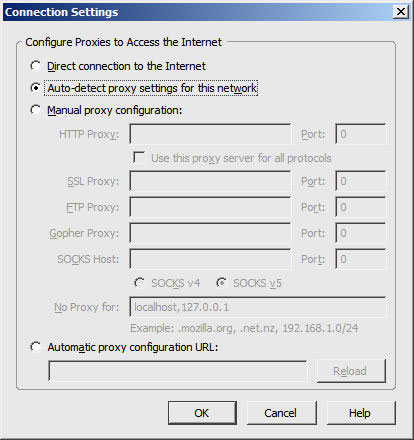
By default, most applications are configured to connect directly to Internet sites, which essentially means that they will not use any proxy servers. When set up this way, every instance of every application has to communicate with remote Web services, which generates a significant amount of unmanaged traffic.
The first step up from that is to explicitly point the application to a proxy server by specifying its host name and port number, as shown in the "Manual" options in the screenshot above. This information usually has to be specified for each transfer protocol that the application supports, which means that maintenance is usually N multiples of each application on each system. So this is perhaps the most inefficient of all the configuration mechanisms.
Worse, hard-coded host names and port numbers tend to make networks more fragile, so while this is sometimes the easiest configuration method to set up initially—just type in the values and get it over with—it can also lead to serious wide-scale problems if the proxy server is ever replaced or moved.
In an effort to try and generalize proxy configuration beyond this meager level, the developers at Netscape came up with a Proxy Auto-Configuration (PAC) file for use with the Navigator browser. PAC files are nowadays supported by almost every browser and operating system but still aren't widely supported by many stand-alone utilities.
Essentially, the PAC specification relies on a text file containing JavaScript code, which the client parses and interprets with its internal JavaScript interpreter on startup. The client applications only have to store a URL that points to the location of the PAC file, as shown in the "Automatic proxy configuration URL" field in the screen shot above.
The PAC file that I use on my lab network is shown below:
function FindProxyForURL(url, host) {

  if (isInNet(host, "127.0.0.0", "255.0.0.0"))
     return "DIRECT";

  if (dnsDomainIs(host, "localhost"))
     return "DIRECT";

  if (shExpMatch(host, "localhost.*"))
     return "DIRECT";

  return "PROXY bulldog.labs.ntrg.com:3128; DIRECT"; }
That code essentially instructs the proxy client to connect directly to any host in the loopback network, or any URL with a host name or domain name that contains "localhost." All other connection requests should be sent to port 3128 on bulldog.labs.ntrg.com, or should be tried directly if the proxy server is unavailable.
PAC files are very powerful, and provide a lot of flexible configuration options to clients. Furthermore, the contents of the PAC files are also somewhat dynamic, since changes to the JavaScript will be picked up the next time the client restarts, if not sooner. But while the file contents are somewhat dynamic, the location of the file is still somewhat static, since the applications have to rely on stored and fixed URLs that use static hostnames and possibly port numbers.
Auto-Discovery Mechanisms
In an effort to further simplify automatic proxy configuration, Microsoft published a specification for Web Proxy Auto-Discovery (WPAD), which essentially describes two different methods for a Web agent to automatically locate proxy control files on the local network. In this model, a client can simply ask the network for the URL of the local PAC file (instead of having to store the URL itself), which the client will then download and process, as described in the preceding section.
The WPAD protocol requires that clients first issue a DHCP request for the location of the shared PAC file, with the answer containing a simple URL that points to the location of the PAC file that the client should use. If the DHCP request fails, then the WPAD specification says that the client should follow up with a DNS lookup for the IP address of a host named "WPAD" in the local domain. If an answer for that query is returned, then the client must issue an HTTP request to the specified host, asking for a file with the exact name of "wpad.dat." The WPAD specification also describes some other lookup mechanisms beyond these first two stabs, but those are extremely rare in the wild, and might as well not actually exist.
The DHCP option is the more flexible of these two auto-configuration mechanisms, since it allows the use of general-purpose URLs pointing to any file, using any protocol, while the DNS option essentially requires using the fixed URL of http://wpad.your.domain/wpad.dat. You can even point to a shared file systems via a "file://" URL if you want. In contrast, the DNS method requires the use of a pre-defined transfer protocol, host name, and file name. However, while most of the proxy clients support the use of the DNS discovery mechanism described above, very few of them use the DHCP mechanism.
For example, the "Auto-detect proxy settings" option shown in the screenshot above is for Firefox, which uses only the DNS method, while Internet Explorer is the only browser I know of that actually supports both DHCP and DNS. As such, if you want to use the WPAD protocol, you are pretty much required to use the DNS mechanism, regardless of whether you also use the DHCP method.
If you decide to go with the DNS-based WPAD method (which you should), then you can take advantage of the mandatory naming to normalize other configuration methods too. For example, since you'll need to have a host named WPAD.your.domain for the DNS lookup to succeed, you can use that host name for your static configurations too. Similarly, you'll need to use a PAC file named WPAD.DAT so you might as well reference that file in any URL-based configurations too.
There are other options for pushing proxy configuration out to clients that do not rely on any of these discovery protocols. For example, you can use predefined Active Directory Group Policy settings to push Internet Explorer proxy settings down to your Windows clients, or you can use legacy NT Domain policy settings with Samba and NAS appliances to do the same basic thing. Using this model, you can configure most of your PCs with the same information in a single operation, without having to rely on auto-discovery methods.
Furthermore, Windows-based applications that reuse Internet Explorer's DLLs for transfer purposes automatically inherit its proxy settings. Unix-derived operating systems and applications can also reuse configuration settings, but this varies by application.Command-line tools typically read the fixed values stored in the environment variables but nothing else, while Gnome applications often use the Gnome-specific fixed-configuration settings, and so forth. Even if the applications understand the same locator mechanism, they might not support features such as user authentication, meaning that consistency can still be spotty even where there is reuse. Overall, there is still a lack of consistency among applications on each platform, not to mention a lack of consistency across them.
One last option worth mentioning before I sign off—due to the kinds of problems described above, some organizations go so far as to use "transparent" proxies on their networks. Transparent proxies essentially work by having a router or forwarder intercept traffic to TCP port 80, and then redirect that traffic to a proxy server, where it is processed like normal. This seems like a good idea on the surface, since you don't have to perform any client configuration whatsoever, but there are also costs associated with this approach that can make it unacceptable.
For example, if a URL points to an odd-ball port number like 8080, then the traffic might not get redirected to the transparent proxy for processing. Furthermore, protocols like FTP may or may not be supported by the proxy server, so you might lose access to alternative protocols that otherwise work with visible proxies. Transparent proxies are also known to have problems with sites that depend on fixed IP addresses for access control, and user authentication problems can crop up too. All told, it's best to configure as many agents as possible with WPAD and network policies, and send the rest of the traffic sources through the transparent proxy if needed.

Copyright © 2010-2017 Eric A. Hall.
Portions copyright © 2004 CMP Media, Inc. Used with permission.