
Using Legacy NT-Domain Policies with Windows XP
Microsoft has emphasized policy management technologies in their network operating system strategy since as far back as Windows 95 and Windows NT 4.0. For many larger networks and organizations, these systems have proven to be extraordinarily useful, although most smaller networks have not embraced the technology. The fact is, however, that network policies can be extremely useful to even the smallest of networks, and are easily worth the relatively small amount of effort required to put them into operation.
Windows policies are essentially a set of registry modifications that are to be applied to a machine and/or user account whenever a network login occurs. By having these policies pulled down from the network automatically, administrators do not need to manage each of the systems and user accounts manually and individually, and it also shortens the setup time needed for new systems and users. Furthermore, users cannot override the policy restrictions easily, which helps to provide a secure and predictable environment. Moreover, these benefits really do apply to organizations of almost any size. Even home networks can find this kind of managerial control useful - you can lockdown a child's user account so that their Internet activities are heavily restricted, for example, without having to worry that Junior can easily bypass your controls - and the rewards go up as the scale of the management domain is increased.
More importantly, these policy controls are not limited to enterprise networking platforms. Although Microsoft's current policy technologies are specifically designed for use with Active Directory (which effectively requires Windows 2000 or Windows Server 2003), the original policy technologies relied on flat database files that were simply stored on shared file systems, with the client systems reading the database file whenever a network login occurred. This older model is the default for all of the Windows releases prior to Windows 2000, but it is also still supported in all of the current Windows releases for backwards-compatibility reasons (and this even includes Windows Server 2003, when it is used as a client or a member server in a legacy Windows domain).
Furthermore, the legacy model works with any network that provides a shared filesystem. This means you can deploy network policies across Samba servers and NAS appliances, or anything else that provides a readable file system to your networked Windows PCs, without using any Microsoft server products. Cumulatively, this means that you can deploy Windows policies across any shared filesystem that a networked Windows system can read, and those systems will get full access to the network policy service.
Choosing the Tools
The domain policy architecture consists of a handful of independent component technologies that cumulatively constitute an overall policy management infrastructure. On the surface, this arrangement can appear to be fairly complicated. But in reality, most of these components only have to be configured once, and the entire system has a very-low maintenance requirement after that, meaning that it is actually somewhat simple.
At the heart of the system is the policy management console, which is where you define the specific policies that you want for your network. Second, the policy management tool uses "administrative templates" in order to determine which policies are available to be defined. Once the appropriate policy templates have been loaded, an administrator can choose to assign specific policies to specific PCs and/or user accounts, or can define default policies that apply to all of the resources in the network. After the policies have been defined, the resulting policy database must be saved as a file on the network, which the individual PCs will pull down whenever a login operation occurs.
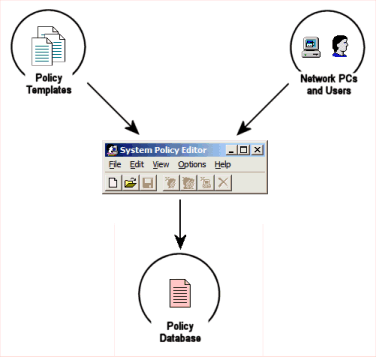
The relationship between these components can be seen in Figure 1. Each of the individual components are also discussed throughout the remainder of this article.
To get started, you will need the policy management tool and some administrative templates. You might already have these, since various Windows releases have included different kinds of policy tools and templates over time.
The Policy Editor
The default policy console application is the Policy Editor, which was originally bundled with some earlier Windows administrative toolkits, and was also included in Windows NT 4.0 and Windows 2000 as part of the core domain-management toolkit. Apart from the original distribution media, Windows NT 4.0 SP6a and Windows 2000 SP4 also include updated releases of the Policy Editor, so if you don't already have a patched version of the relevant operating systems installed you can get the updated executables from the service packs directly (you will want to verify that you have a license which allows you to use the service packs first, of course).
There are some substantive differences between the different versions of poledit.exe which should be noted. In particular, Windows 2000 and subsequent releases of the operating system use 16-bit Unicode for the underlying text files, and this includes the administrative templates that Policy Editor uses. Since earlier Windows releases relied on eight-bit character data, the policy editor that is bundled with Windows NT and its associated service packs is not capable of reading the administrative templates that are bundled into Windows 2000 or any later releases, and the policy editor from Windows 2000 must be used. For example, if you want to incorporate the administrative templates that come with Windows XP into your domain policy database, then you must use the poledit.exe from Windows 2000 or SP4, and any attempts to use the policy editor from Windows NT or SP6a with those templates will result in a variety of errors and may result in incomplete or corrupted policy database.
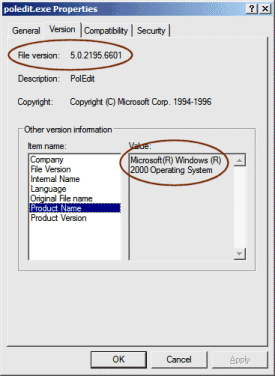
If you're not sure which version of poledit.exe you have, you can look at the file properties in Explorer and examine the information in the "Versions" tab. Figure 2 shows the version information for the poledit.exe that is included in Windows 2000 SP4.
As long as you are at version 5.0 or greater, you should be okay. But as a general rule, administrators should try to get the latest release, which is the version bundled into the Windows 2000 SP4 service pack.
The Administrative Templates
Every major Windows release in the last 10 years has included some administrative template files appropriate to that release. These files have an ".adm" extension, and are stored in "C:\Windows\INF\" or "C:\WinNT\INF\" depending on the exact Windows release at hand (this sub-directory is usually hidden, but can be accessed by typing the full pathname into Explorer).
The core set of templates consists of "common.adm" which contains a couple of policy options for all flavors of Windows, the "win95.adm" template which contains policy options for 16-bit Windows releases, and the "winnt.adm" template which contains policy options for 32-bit releases. The appropriate platform policies need to be used for your different computing platforms. For example, Windows XP is a 32-bit release, so policies for XP systems must use the common.adm and winnt.adm template files, while Windows Me is 16-bit release and uses the common.adm and win95.adm template files.
Note that some of the newer Windows releases also include administrative templates which are specifically for use with the newer Group Policy tool, and those templates are not usable with the legacy Policy Editor, due to syntax differences. You can load these templates into version 5 of Policy Editor but it will flag and ignore them, while older releases will report syntax errors (and may also encounter other difficulites if the templates use the 16-bit Unicode text format). For example, the core.adm, system.adm, inetres.adm, and wmplayer.adm template files included with Windows XP are all unusable with the legacy Policy Editor, since they are all specifically intended to be used with the Group Policy editor.
Of the three core template files that are usable, Windows Server 2003 has the absolute latest versions, and some of these templates have been expanded to provide additional functionality over earlier releases, but not a significant amount. You should be ble to get by with the versions that came with your operating system without any significant loss in functionality.
Apart from the core templates, a variety of add-on templates are also available on the Internet. For example, Microsoft's Internet Explorer Administration Kit (IEAK) will automatically download several administrative template files that define a tremendous number of IE-specific options, and also provide a limited number of policies for Outlook Express and Windows Media Player. Microsoft also provides a separate administrative template for the Windows Firewall component from Windows XP SP2, and also provides a collection of templates for use with Microsoft Office, all of which can be downloaded from Microsoft's web site.
Mike Petersen has also created and posted a custom template which can be used to set a large number of options that are not available through other templates.
It's also important to note that almost any registry setting can be defined in a custom template if you are willing to do the work. The template files have special syntax that must be followed, but beyond that they are barely more than customized registry files, and if you are willing to learn the syntax there is no real limit to what you can define.
J.H.A. van de Weijer has developed a Windows program that will convert registry files into administrative templates and vice-versa, thereby making it easy to create your own customized templates. Using this tool, it is a simple matter to define some basic settings that you want to define as policy rules, export the relevant registry data to a file, and convert the file into a policy template, which can then be imported into the Policy Editor and enforced across your whole network.
Cumulatively, there are a dozen or so pre-existing administrative templates that let you define a couple of hundred individual policy options, and any number of additional policy statements can also be defined to suit your particular needs.
Defining the Policies
The actual process of defining the desired policies is fairly straightforward. All you need to do is load the administrative templates that you want to use, define the policies that you want to enforce, and then save the resultant collection to a database file where it can be accessed by your systems.
The first time that Policy Editor is started, it will try to read the appropriate core templates files from your local C:\Windows\INF\ directory. If you want to use additional templates, use the "Options" menu to add or remove the templates that you need. Whatever policy templates are in use when the program is closed will also be used the next time it is started.
Once you have chosen the templates that you want, create a new policy database via the toolbar or File menu. Note that you cannot modify the templates while a database is being defined, so if you discover that you need a different collection of templates you will need to close the current policy database before you can change the templates that are loaded.
A policy database will always have a minimum of two "targets", which are the Default Computer and the Default User. These targets hold the policy definitions for all of the systems and user accounts who read the database. Additional targets can also be defined for specific workstations, users and groups by clicking on the relevant toolbar button or using the appropriate menu items. In those cases where you have target-specific policies, the named target will inherit all of the default settings, plus whatever settings you have defined for that target. If you need to completely exempt a target from all of the policy settings, you will need to explicitly override all of the policies for that target.
Note that the machine and user policies hold different types of data: machine settings hold policies that are typically associated with the HKEY_LOCAL_MACHINE registry hive, while user-specific settings hold policies that are typically associated with the HKEY_CURRENT_USER registry hive. As such, machine settings define policies for a specific workstation, regardless of the user account, while user-specific settings apply to the user, no matter where they are on the network. Note that there is no way to define policy settings for the combination of a specific user on a specific machine, but instead those targets must be defined independently, and those settings will always apply to that machine or user, regardless of the other element.
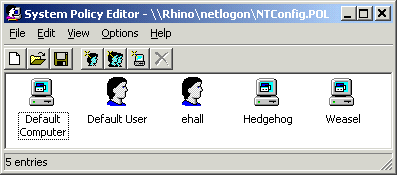
Figure 3 shows a policy database with target-specific definitions for the user with the account name of "ehall" and a pair of PCs with the workstation name of "hedgehog" and "weasel" respectively. The machine-specific settings will apply to any user on those workstations, while the user-specific settings will apply to the ehall user account regardless of his current location. In both cases, the machine and user account will also inherit whatever settings have been applied to the default targets.
The policy definitions are set by double-clicking on one of the defined targets, and then manipulating the state of each individual policy for that target. Each policy is in a "neutral" state by default, where the policy statement is essentially ignored. The policy state must be explicitly defined before any changes will be made. The current state of a policy is represented with a simple checkbox next to the policy name; a neutral policy has a grey checkbox, while an enabled policy has a mark in the checkbox, and a disabled policy has a completely empty checkbox. If a policy has any extended settings (like textual data or flags), the input boxes associated with those policies will also be disabled until the policy itself is activated. Policies which have been explicitly disabled usually have their own associated value (such as setting a a registry key to "0" instead of "1"), and will sometimes cause the extended entry data to be cleared or reset, but this will not always be the case.
Note that disabled policies are not the same as neutral policies, since a disabled policy can and will make changes to the registry if some other tool or policy has previously enabled an option, while a neutral policy will keep whatever is already defined and will not change the target system's registry.
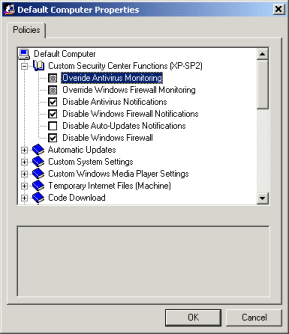
You can take advantage of this feature to stack policy definitions, such as having the default policy define organization-wide settings, and then having a user-specific policy cancel out some of the settings for a particular user (using the "disabled" flag), with all of the other user-specific settings flagged as neutral so that they continue to inherit the default settings. Figure 4 shows a typical example of some policy states.
In that example, some of the policies are defined as neutral, while some of them have been enabled, and others still have been explicitly disabled. The neutral policies will do nothing, while the enabled and disabled policies will make changes to the underlying registry whenever the policy database is loaded.
One point of consideration here is the fact that domain policies are "sticky" changes, since they write explicit values to the system and/or user registry hives. What this means is that any changes that are made will remain in place until they are explicitly reversed (this is sometimes referred to as "tattooing"). If you decide that a policy is not desired, you cannot simply unload the relevant administrative template and expect that the changes will magically unroll, but instead you will need to explicitly reverse the changes. Note that the Active Directory-based Group Policy construct does not make permanent changes like this, which is one of its stronger selling points.
Managing the Policy Databases
Once the policies have been defined, the policy database has to be saved to a location where the local systems can find and load it.
By default, Windows PCs that are part of an NT domain will look in the "netlogon" share for the policy database whenever a login operation is performed. 16-bit Windows systems look for a database called "Config.pol" while 32-bit systems look for a database called "NTConfig.pol" (the different naming conventions allow for the use of different policy databases for different platforms). If your systems are part of a domain, then all you need to do is create the appropriately-named database in the appropriate directory on your login server[s], and assign read-only permissions to your users. Organizations with multiple login servers can simply replicate the database like any other file.
If you do not have a NT domain, or if you have PCs that are not part of a domain, you can also instruct the clients to load a centralized policy database by modifying their local registries. HKEY_LOCAL_MACHINE\System\CurrentControlSet\Control\Update will need to have an entry for "UpdateMode" with the DWORD value of "2", and an entry for "NetworkPath" with the STRING value containing a path to the database file.
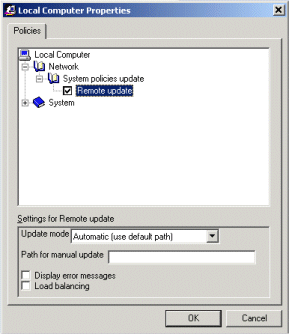
Note that this data is also represented in the "common.adm" administrative template, so this information can also be defined by enabling the appropriate policy object, and applying the policy setting to the local registry instead of saving it to a file (this option is under the "File" menu in the Policy Editor tool). Figure 5 shows these options in their default settings.
Beyond that, you should also make sure that regular domain users cannot delete or rename the policy database file, since that is all that's needed for a user to be able to effectively bypass the policy declarations.
Also note that users may be able to change their registry so that the update service points to a policy database that does not exist, which would essentially allow them to bypass the policy system. If this is a concern, you may want to perform some kind of periodic auditing.

Copyright © 2010-2017 Eric A. Hall.
Portions copyright © 2005 Eric A. Hall